


Recently I am working with Oracle database and I want to see the list of tables and views. As we all know its not as friendly as SQL server. So I want to connect (Linked Server) the oracle to SQL SERVER for quick view of the data. Here are the steps I followed to setup a linked server.
(I'm working with Oracle 12c and MSSQL 2008 R2 STD)
1. Install ODAC 12 (Oracle Data Access Components) Download: http://www.oracle.com/technetwork/database/windows/downloads/index-090165.html


2. Reboot
3. Create linked server


1. Install ODAC 12 (Oracle Data Access Components) Download: http://www.oracle.com/technetwork/database/windows/downloads/index-090165.html
- Extract file and run setup.exe

- Select language > Next

- Select option: Use Windows built in Account

- Specify an Oracle base path to place all Oracle software and configuration-files.

- Select
- Oracle Data Provider for .NET
- Oracle Providers for ASP.NET
- Oracle Services for Microsoft Transaction Server
- Oracle Data Access Components Documentation for Visual Studio

- Next


- Click Install

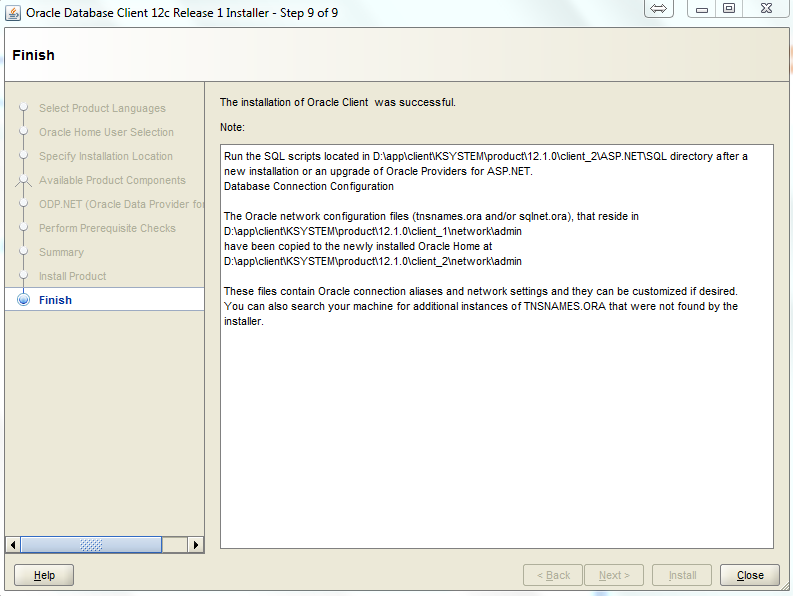
- Complete
2. Reboot
3. Create linked server
- Open SQL Server Management Studio (SSMS)
- Right click on "OraOLEDB.Oracle" under Server Objects -> Linked Servers -> Providers and select Properties
- Check to Enable "Allow inprocess"
- Right click on "Linked Server" and select "New Linked Server..."

On page General:
- Linked server: <any linked server name> (ex: CONNECT_ORACLE)
- Server type: select Other data source
+ Provider: Oracle Provider for OLE DB
+ Product name: <any> (ex: OraOLEDB.Oracle)
+ Data source: //Server-IP:port/SID (ex: //10.0.0.8:1521/ORCL)

On Security page:
Select option: "Be made using this security context"
Type remote login username and password for oracle
Remote login: <username> (ex: oracleuser)
Password: <password> (ex: oracleuser)

4. Select oracle data from SSMS
SELECT * FROM [LINKED SERVER NAME]..[SCHEMA].[TABLENAME]
EX: SELECT * FROM CONNECT_ORACLE.[ORACLEUSER].[TEST]


